
How To Videos
How to View Item 23 Receipt Page in FranchiseSoft
Once the FDD is delivered to a candidate, our system requires your candidate to acknowledge that they have received the FDD before it allows them to download the document. The information provided by the candidate in the following screen will populate the Item 23 Receipt Page that can be printed for your records.
Follow these step-by-step to view your leads signed FDD:
1. From your Lead List – Click the gear icon.
2. Select FDD from the list.
3. To view your Item 23 Receipt Page, click View Details.
For More Details: https://app.franchisesoft.com/knowledge_base/article_detail/81
If you would like a DEMO of the software, kindly visit https://franchisesoft.com/ and request a Demo.
BackHappy Customers
A True Partner in Franchise Development
FranchiseSoft has been our go to solution for document management, tracked correspondence to our network, and tools to power our Franchise Development with segmentation, automation, and communication processes to take the heavy lifting off our plate. They have been a
fantastic partner in the Franchise space! Leigh Feldman CEO - Youth Franchise Brands
Why I love FranchiseSoft’s Sales CRM?
FranchiseSoft is an easy to use, afforfable and powerful CRM. It makes the FD Process a great experience for our candidates and for our team.
 Paul Pickett Chief Development Officer Wild Birds Unlimited
How FranchiseSoft delivered 100 Franchise Agreements in 2 years for Brusters Ice Cream?
It helps us communicate a consistent message and establish realistic expectations with our franchise candidates. I couldn’t do my job without this outstanding platform and their responsive customer service!
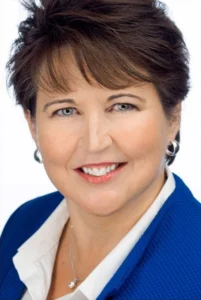 Kim Ellis Vice President of Franchise Development & Legal at Bruster’s Real Ice Cream
How Moran Family of Brands shifted into High Gear switching to FranchiseSoft!
Using FranchiseSoft Franchise Sales CRM for 3 years. Its very user friendly and very robust, the team is easy to work with and very supportive. Making the transition was a good decision for our franchise system!
 Pete Baldine President, Moran Family of Brands
Our Franchise Clients













































Get an Inside Look
With all these key components packaged into an all-in-one system, it’s no surprise that FranchiseSoft is considered the best franchise management CRM in the market.
Ready to see FranchiseSoft for yourself? Fill out the Demo Request form to schedule an inside look at our franchise management software.

Pre-recorded Demo